Transaction guide
Viewing and Understanding Your Transactions
Your Transactions page is where everything you imported lands: labels, cost basis, gains and fees. Learn to read it and you can trust every figure that reaches your tax report.
What am I looking at
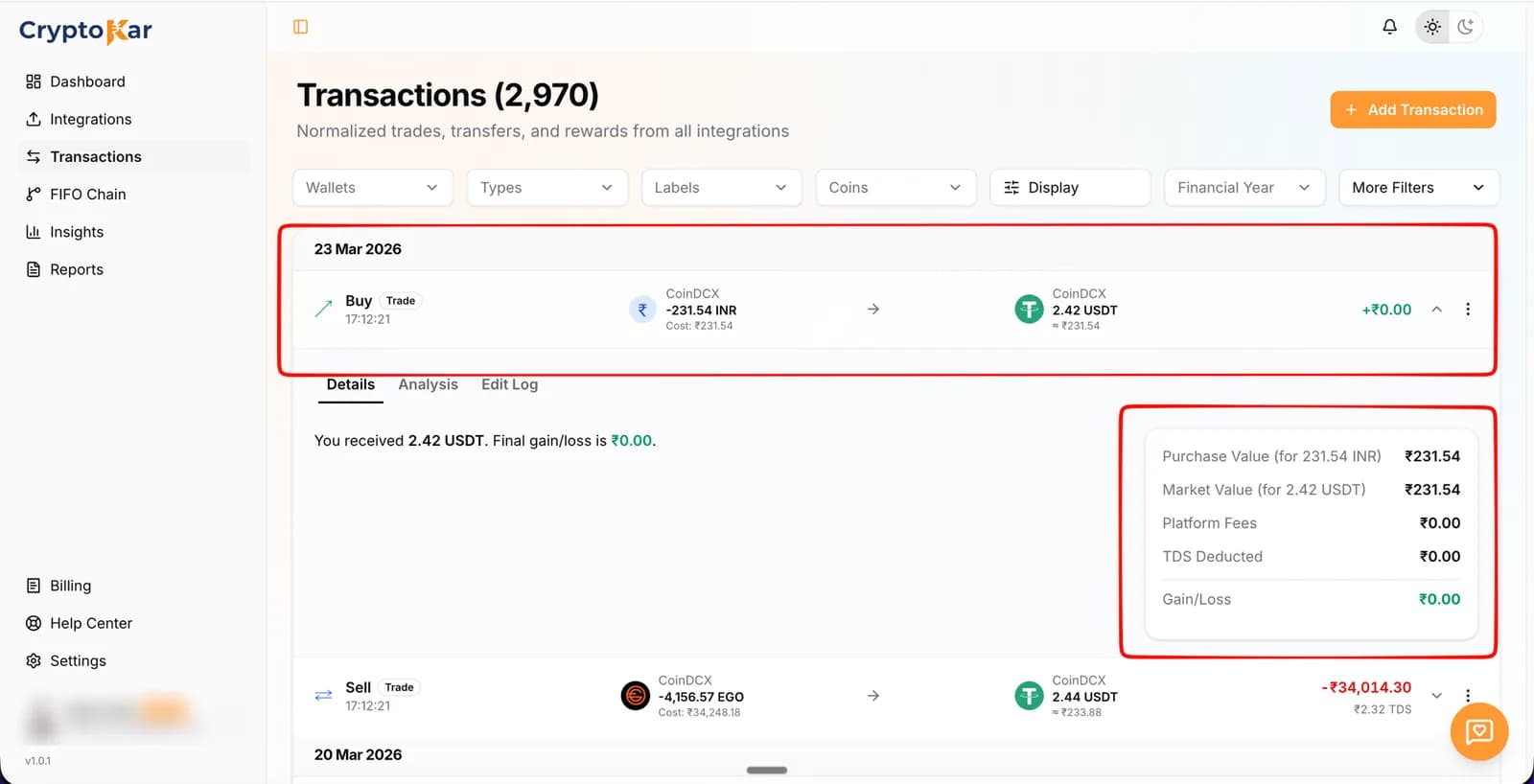
Each row is one transaction, grouped under the date it happened, newest first. Here is the same row an Indian trader sees after importing CoinDCX, with every part named.
- What happenedThe type and label: Buy, Sell, Trade, Airdrop, Settlement Out and the rest.
- When it happenedThe date heading above the group, and the exact time on the row.
- Where it happenedThe exchange, printed above each asset. Two names means the assets moved between accounts.
- What went outThe asset leaving, in red, with its cost of acquisition underneath.
- What came inThe asset arriving, with its rupee worth underneath.
- What it did to your taxThe gain or loss on the right, green for a gain and red for a loss.
- What it cost youPlatform fees as a percentage, and the TDS deducted in rupees.
How was my gain or loss calculated
Click the row to expand it, then open the Details tab. The card on the right shows exactly how the figure was built.
| Field | What it means |
|---|---|
| Purchase Value | What the asset being sold cost you, taken from the lots FIFO matched. |
| Market Value | What the asset you received was worth in rupees at the time of the transaction. |
| Platform Fees | The fee the exchange charged, with the percentage beside it on the row. |
| TDS Deducted | Tax deducted at source by the exchange under Section 194S, which you later claim as credit. |
| Gain/Loss | Market value minus purchase value. This is the figure that reaches your capital gains. |
Why does my gain show a specific number
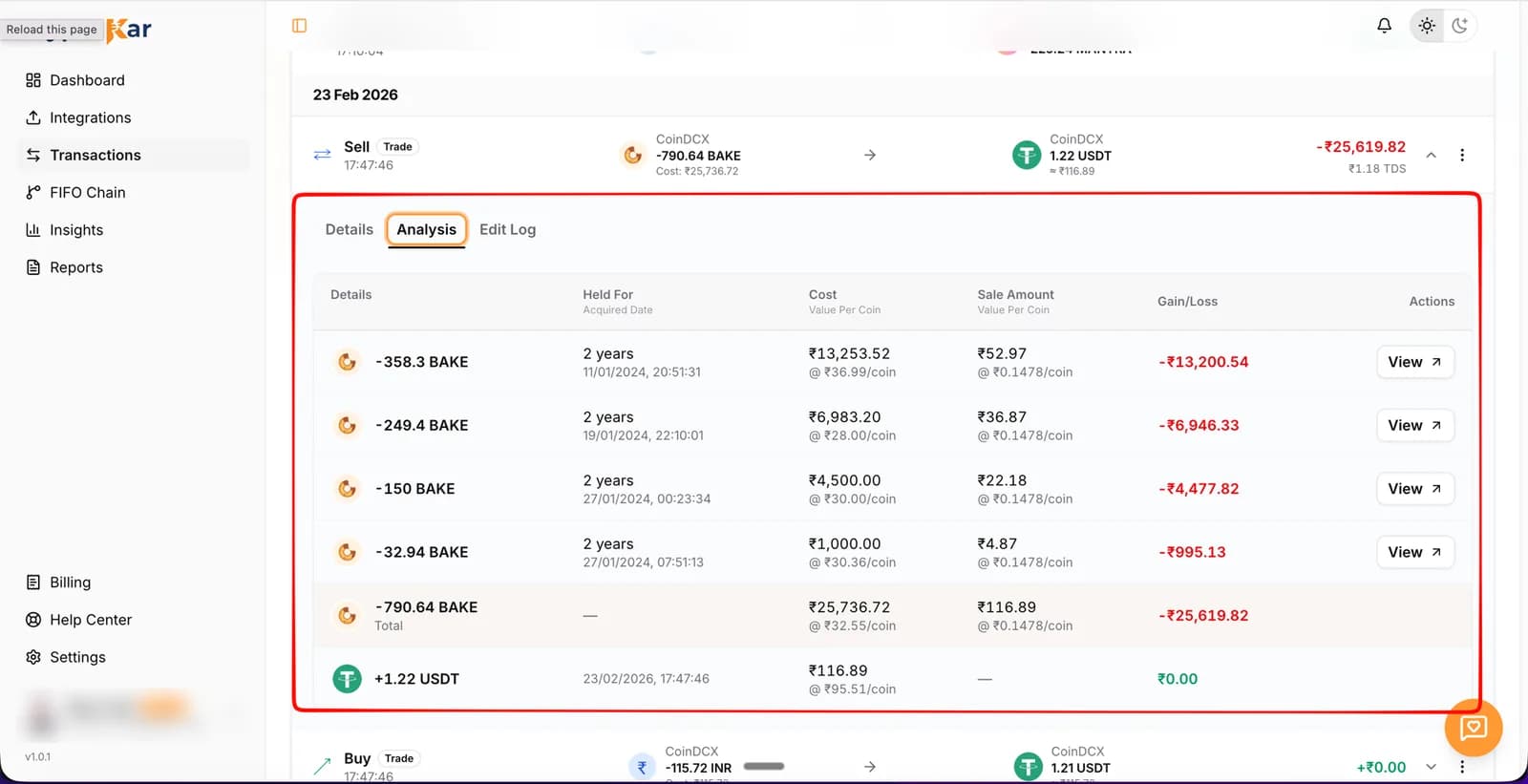
Open the Analysis tab on any transaction. It shows which purchase lots the sale consumed, in the order FIFO took them, and what each one contributed.
| Column | What it means |
|---|---|
| Details | The quantity taken from one purchase lot, with the coin it came from. |
| Held For | How long you held that lot, with the date you acquired it underneath. |
| Cost | What that lot cost you in total, and the value per coin underneath. |
| Sale Amount | What that portion sold for, and the sale value per coin. |
| Gain/Loss | Profit or loss from that lot alone. |
| Total | The shaded row. Every lot added together, which is the figure on the transaction itself. |
| Actions | View jumps to the purchase transaction, even when it sits in an earlier year. |
Reading one in full
A sale of 790.64 BAKE is made up of four earlier purchases: 358.3 coins bought in January 2024 at ₹36.99 each, then 249.4, then 150, then 32.94. Together they cost ₹25,736.72 and sold for ₹116.89, so the total row shows a loss of ₹25,619.82. That total is the figure printed on the transaction.
Where a lot has no purchase behind it, the cost shows as nil and the row is flagged rather than guessed at. See how to add a missing cost basis.
What Held For means
How long you owned that particular lot before disposing of it, with the date you acquired it underneath.
- It shows the holding period per lot, not per coin, which is why one sale can list four different durations.
- For VDA gains it changes nothing in the tax. Section 115BBH charges 30% whether you held the coin for a week or four years, and there is no long-term or short-term split.
- It is still worth reading, because a holding period you do not recognise usually means the sale matched a lot you were not expecting.
- The received coin at the bottom of the table shows the date it arrived, since that is where its own holding period starts.
What acquisition cost means
What you originally paid for the coins being disposed of. It is the only deduction Section 115BBH allows, so it decides your whole taxable gain.
Example
- You bought 0.1 ETH for ₹30,000.
- Your acquisition cost for that 0.1 ETH is ₹30,000.
- Sell it for ₹50,000 and the gain is ₹20,000. Tax is ₹6,000 plus ₹240 cess.
- Lose the purchase record and the gain reads ₹50,000, taxed at ₹15,000 plus ₹600 cess.
Did someone edit this row
Open the Edit Log tab. Every change made to the transaction is recorded there, and a row nobody has touched shows an empty log.
| What you see | What it means |
|---|---|
| Date and time | When the change was made, at the head of each block. |
| Field Name | What was changed: Type, Label, Date/Time, Asset, Quantity, Amount (INR), Fee, TDS, Tx Hash, From, To or Note. |
| Old Value | What the field held before, shown in red. |
| Updated Value | What it holds now, shown in green. |
The row menu on the right holds the actions that produce those entries: Tag as further review, Clone, Split Amount, Edit and Delete.
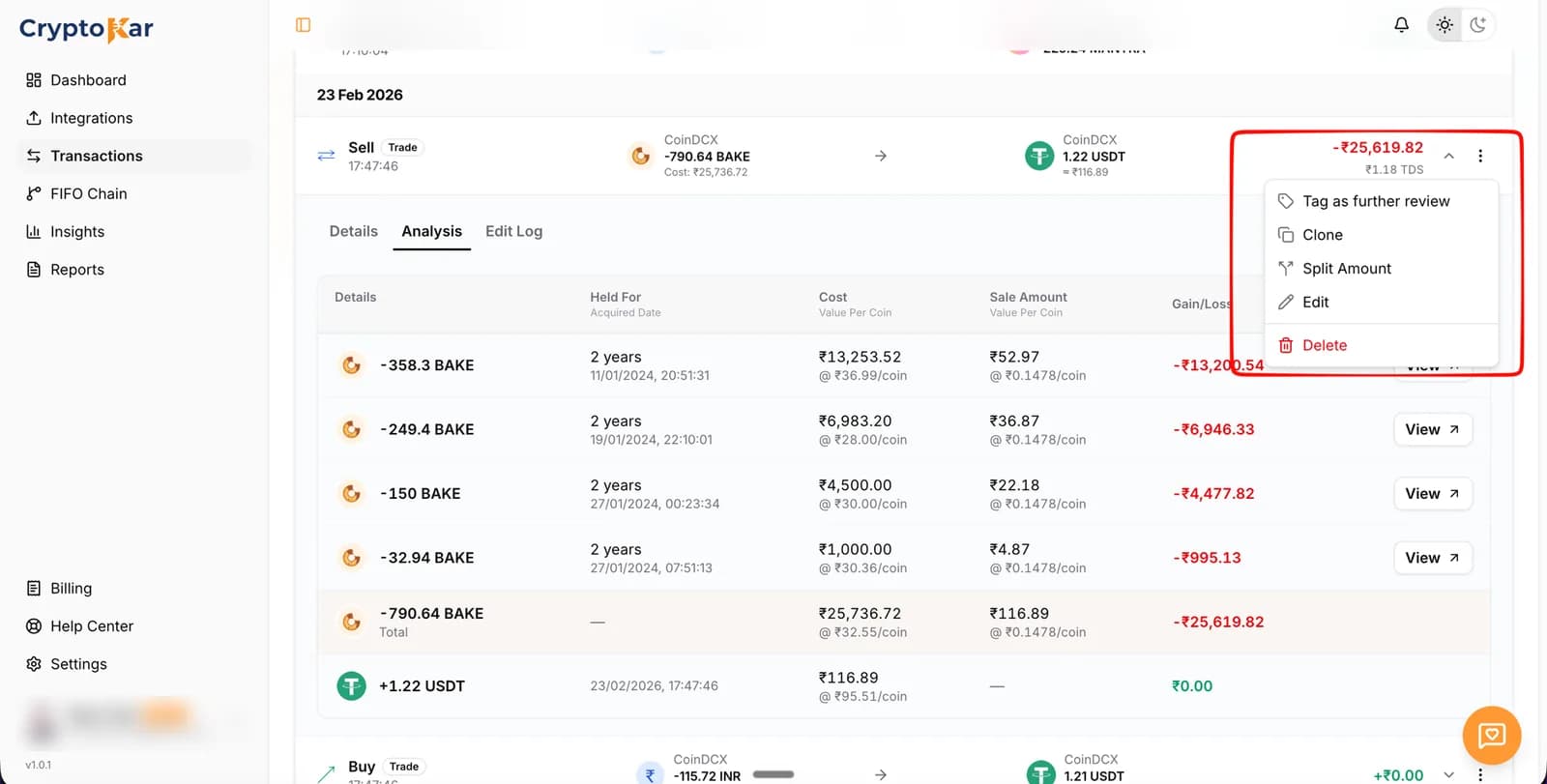
What each action does, and what can be undone, is covered in editing transactions.
Finding one transaction fast
Use the filter bar at the top of the page. Filters stack, so each one you add narrows what is left.
Step 1: Start with the warnings
- Open Display and switch on Missing Purchase History or Missing Price.
- These rows change your tax the most, so they are worth clearing before you look at anything else.
- Tagged for Review shows the rows you marked yourself from the row menu.
Step 2: Filter by what you remember

- Wallets narrows to one exchange.
- Types narrows to what happened, for example every withdrawal.
- Labels narrows to the readable name, for example every Settlement Out.
- Coins narrows to one asset, searchable by ticker or full name.
- Financial Year narrows to the year you are filing for.
Step 3: Narrow to a date range
- Open More Filters and set a From and To date.
- Pair it with a coin filter when you know roughly when a trade happened but not the day.
Step 4: Read the count, then clear
- The heading shows how many transactions match what you have selected.
- Filters stack, so an empty list usually means two filters that cannot both be true.
- Clear Filters resets everything in one click.
The accounting method
- CryptoKar computes on strict FIFO. The oldest unsold lot of a coin is always the one a disposal consumes first.
- There is no setting to switch to another method, so the Analysis tab, your gains and your Schedule VDA rows all come from the same working.
- The lot pool is per coin and spans every exchange you have imported, so a coin bought on one exchange can be matched to a sale on another.
- Importing an account you no longer use still changes your gains, because the oldest lots usually sit in the oldest account.
The FIFO Chain view in the sidebar shows the same matching for a whole coin rather than a single row.
Frequently Asked Questions
What people ask when they open the Transactions page for the first time.
Edge cases
- Transactions are missing from the list
- A filter is usually still on. Click Clear Filters and read the count in the heading. Where the count is genuinely short, the export you imported did not cover that period.
- A row shows an unexpected value
- Open Details to see the purchase value and market value side by side, then Analysis to see which lots produced them.
- Acquisition cost shows ₹0
- No purchase was matched to the disposal, so the entire sale value is being treated as gain. The row carries a missing purchase history warning.
- The timestamp looks wrong by a few hours
- Exports carry their own timezone. CryptoKar stores the moment the exchange recorded, so a trade near midnight can appear on the neighbouring day.
Still not sure what a row is telling you? Send it to us and we will explain it.
CryptoKar calculates your tax from the transaction data you import. Review your report before you file. If you have questions about your tax situation, speak with a qualified tax professional.
Last updated 21 August 2026
Calculate Your Crypto Tax
Import your exchange data and get started. Supports CoinDCX, WazirX, Binance and Bybit.