Transaction guide
Edit Transactions
Imports are only as accurate as the export behind them. When a row comes in with the wrong price, the wrong type or the wrong quantity, you can correct it in place, and every correction is recorded.
When to edit a row
- The rupee value came through wrong, or came through as zero on a thin pair.
- The type is wrong, so an airdrop is sitting in your history as a plain deposit.
- The quantity does not match what the exchange shows, usually after a partial fill.
- TDS or fees are missing from a row that carried them.
- One exchange row covers two things that belong apart, so it needs splitting.
Editing a transaction
Step 1: Open the row menu
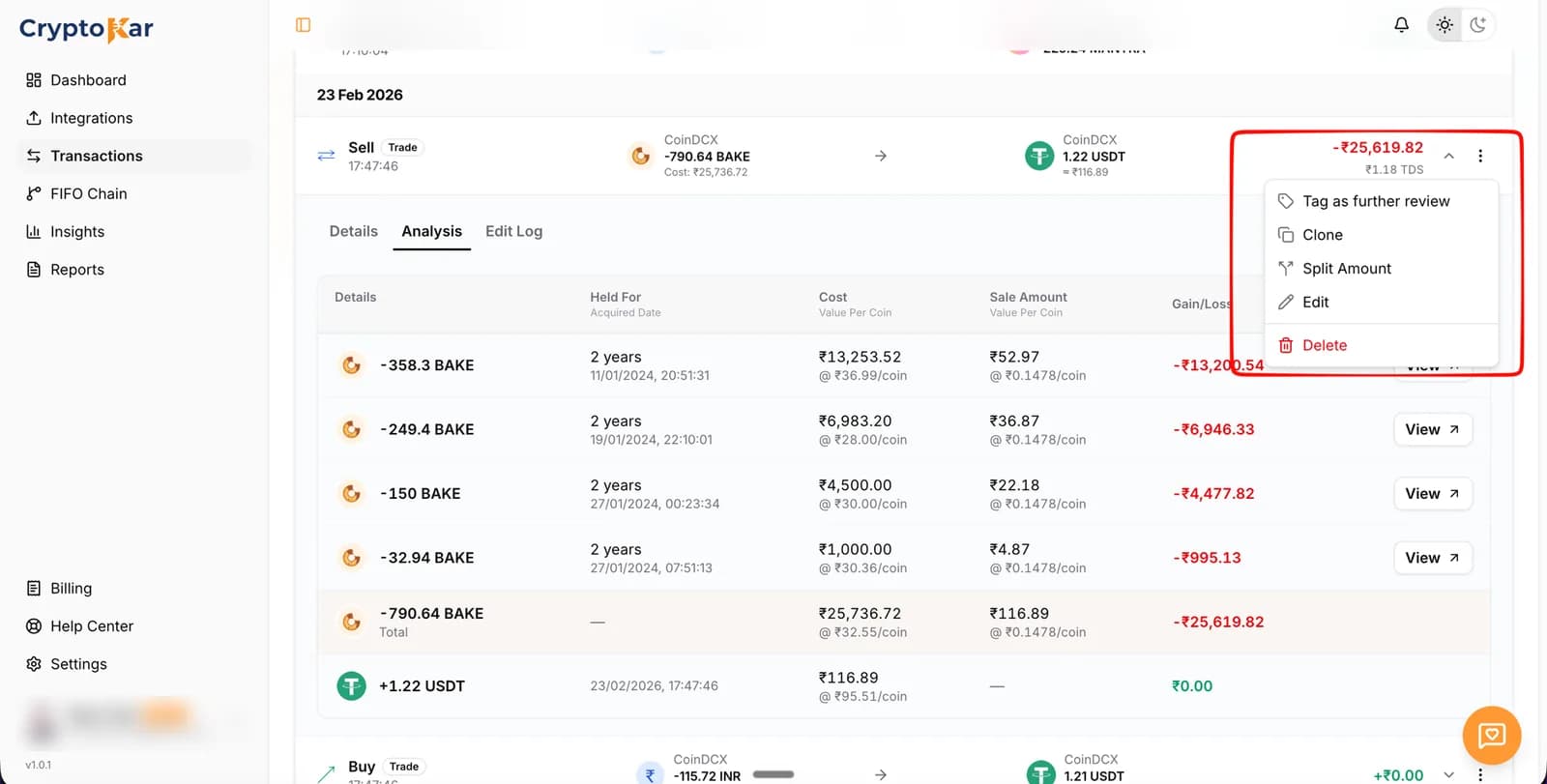
- Find the transaction on the Transactions page and click the three dots at the end of the row.
- The menu holds Tag as further review, Clone, Split Amount, Edit and Delete.
- Choose Edit. The dialog opens with the current values already filled in.
Step 2: Change what is wrong
- Change one field or several. Everything you do not touch stays as it is.
- The Transaction Label is a preview, not an input. It follows the type you pick.
- The Wallet is fixed to the account the row came from.
Step 3: Save the change
- Click Save Changes.
- The row recalculates immediately, and so does every disposal that draws on it through FIFO.
- The change is written to the edit log with a timestamp.
Step 4: Check what moved
- Expand the row and open Analysis to see the lots it now matches.
- Open Reports to see the year total after the correction.
- Generate a fresh report if you had already downloaded one.
What each field does
The numbers on the dialog match the list below it.
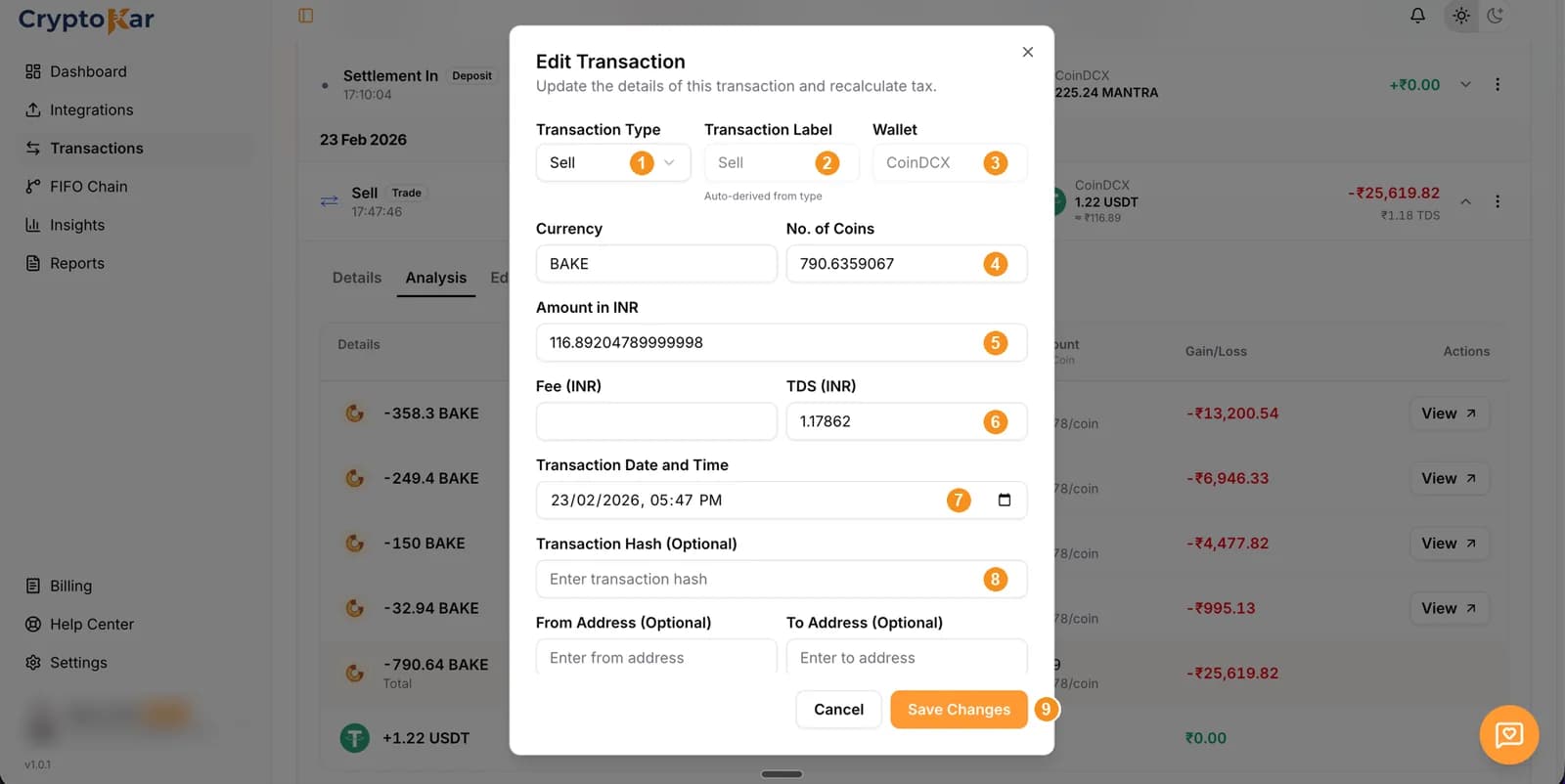
- Transaction TypeBuy, sell, deposit, withdrawal, trade, swap, reward, airdrop, staking, fork or derivatives. It decides how the row is taxed, so it is the field worth getting right first.
- Transaction LabelGreyed out, because it is auto-derived from the type. Change the type above and the label follows it.
- WalletGreyed out as well. A row stays with the account it was imported from, so a trade cannot be moved to another exchange.
- Currency and No. of CoinsThe asset and the quantity. Correct the quantity when a partial fill came through as the full order.
- Amount in INRThe rupee value of the transaction. This is the field to fix when a coin came in unpriced or at an obviously wrong rate.
- Fee (INR) and TDS (INR)Both in rupees. TDS feeds the credit you claim under Section 194S, so it is worth entering even though it does not change the gain.
- Transaction Date and TimeWhen it happened. This decides where a buy sits in the FIFO queue and which financial year the event falls in.
- Transaction Hash and addressesOptional. They affect no calculation and exist for your own records, which matters when you are reconciling an on-chain move later.
- Save ChangesWrites the edit, recalculates the row and everything downstream of it, and adds an entry to the edit log. Cancel closes without touching anything.
Splitting a transaction
Some exports collapse two events into one line. Splitting turns that line into two rows you can treat differently.
- Open the row menu and choose Split Amount.
- Enter the quantity for the first part. The rest becomes the second part.
- Save. You now have two rows, each with its share of the original.
- Edit either part on its own, for example to recategorise half of it as a staking reward.
Cloning a transaction
Clone copies a row, fields and all. It is the quickest way to add a transaction that looks almost like one you already have: clone it, then edit the date, quantity or price on the copy.
Deleting a transaction
- Open the row menu, choose Delete, then confirm.
- Deleting a buy removes a lot from the FIFO pool, which can leave later sales with no cost basis.
- Deletion is permanent. There is no undo and no bulk delete.
- Where a row is a duplicate, delete the copy rather than the original, so the edit history stays with the row you keep.
| Action | Can it be undone? |
|---|---|
| Editing a field | Yes. Edit it again, and both versions stay visible in the edit log. |
| Splitting a row | Not as one action. Delete the two parts and add the original back manually. |
| Cloning a row | Yes. Delete the copy. |
| Tagging for review | Yes. Tag it again to clear the mark. Tagged rows are found through the Display menu. |
| Deleting a row | No. Re-import the file or add the transaction by hand. |
| Adding a purchase value | Yes. Edit or delete the acquisition you added, and the warning comes back. |
The edit log
Every row keeps its own history. Expand the transaction and open the Edit Log tab to see it.
- One block per change, headed with the date and time it was made.
- Inside it, a row per field: the field name, the old value in red, the new value in green.
- Fields are named plainly: Type, Label, Date/Time, Asset, Quantity, Amount (INR), Fee, TDS, Tx Hash, From, To, Note.
- A row you have never touched shows an empty log, which is itself useful when you are checking whether a figure came from the exchange or from a correction.
Frequently Asked Questions
What people ask before changing a row that came from an exchange.
Edge cases
- Changing the date moved a gain you did not expect
- The date sets the position of a buy in the FIFO queue. Move a buy earlier and a later sale may consume it instead of a different lot. Check the Analysis tab on the affected sale.
- The edit saved but the row looks the same
- Some fields, like the hash or a note, change nothing visible on the row. Open the Edit Log tab to confirm the change was recorded.
- You deleted the wrong row
- Deletion is permanent. Re-import the export that carried it, or add it back through Add Transaction with the same date, quantity and value.
- A split left one part unpriced
- Each part carries its share of the original value. Where the split was uneven, edit the amount on each part so the two together match what the exchange showed.
Not sure whether to edit or re-import? Ask us first.
CryptoKar calculates your tax from the transaction data you import. Review your report before you file. If you have questions about your tax situation, speak with a qualified tax professional.
Last updated 21 August 2026
Calculate Your Crypto Tax
Import your exchange data and get started. Supports CoinDCX, WazirX, Binance and Bybit.