Product guide
How to Generate Your Crypto Tax Report
Import your exchange files, check the transactions that came in, then generate the report for a financial year. What comes out carries your gains under Section 115BBH, the TDS deducted under Section 194S, and one Schedule VDA row per disposal.
Generate your report in five steps
Every step below happens inside your CryptoKar account. The only work outside it is downloading the trade report from your exchange, which each import guide covers.
Step 1: Create your account
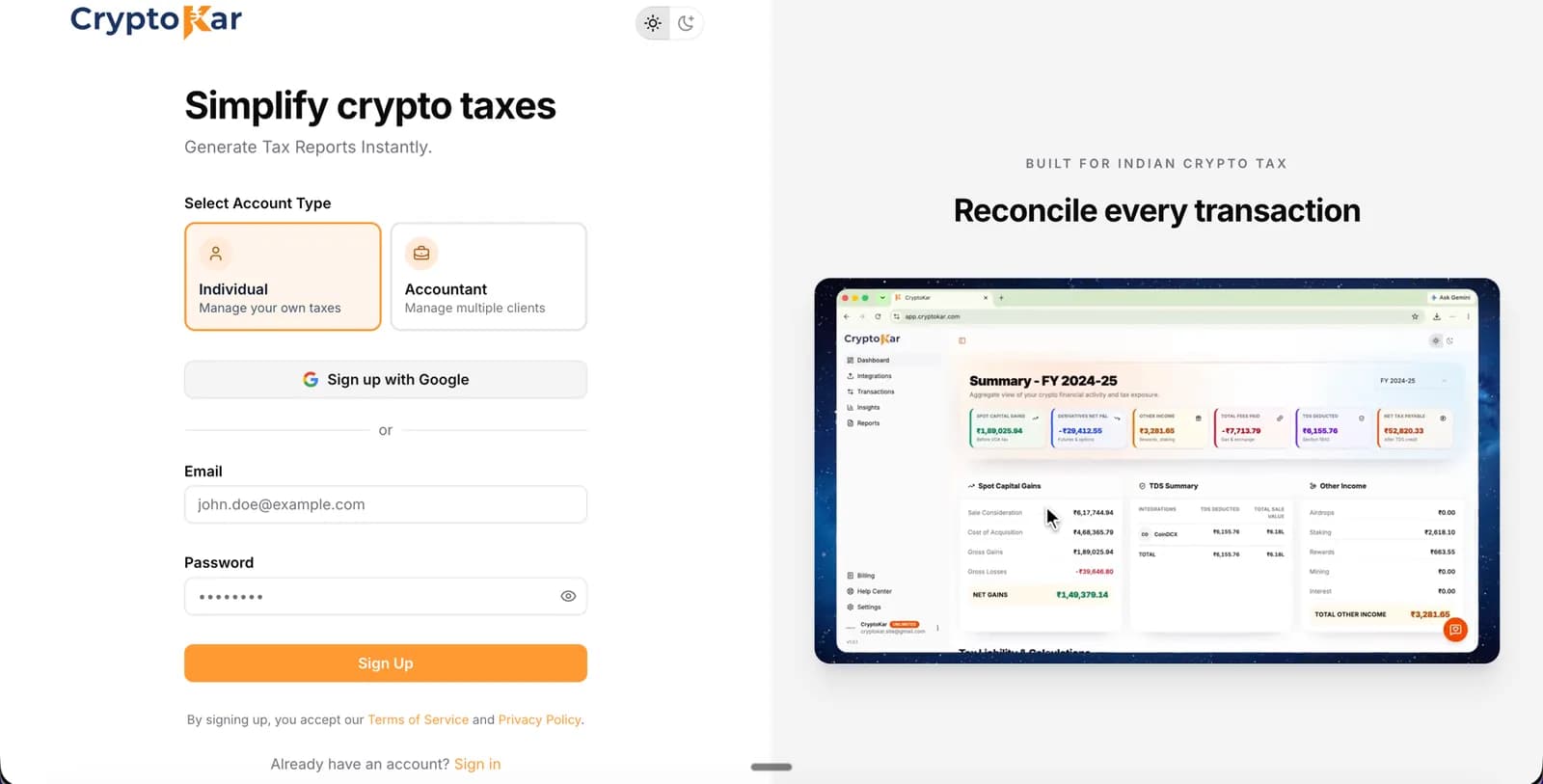
- Pick Individual to file your own return, or Accountant to hold a separate profile per client.
- Sign up with Google, or with an email address and password.
- A free account covers import, portfolio and the tax calculation. The report download is the paid part.
Step 2: Import your exchange files
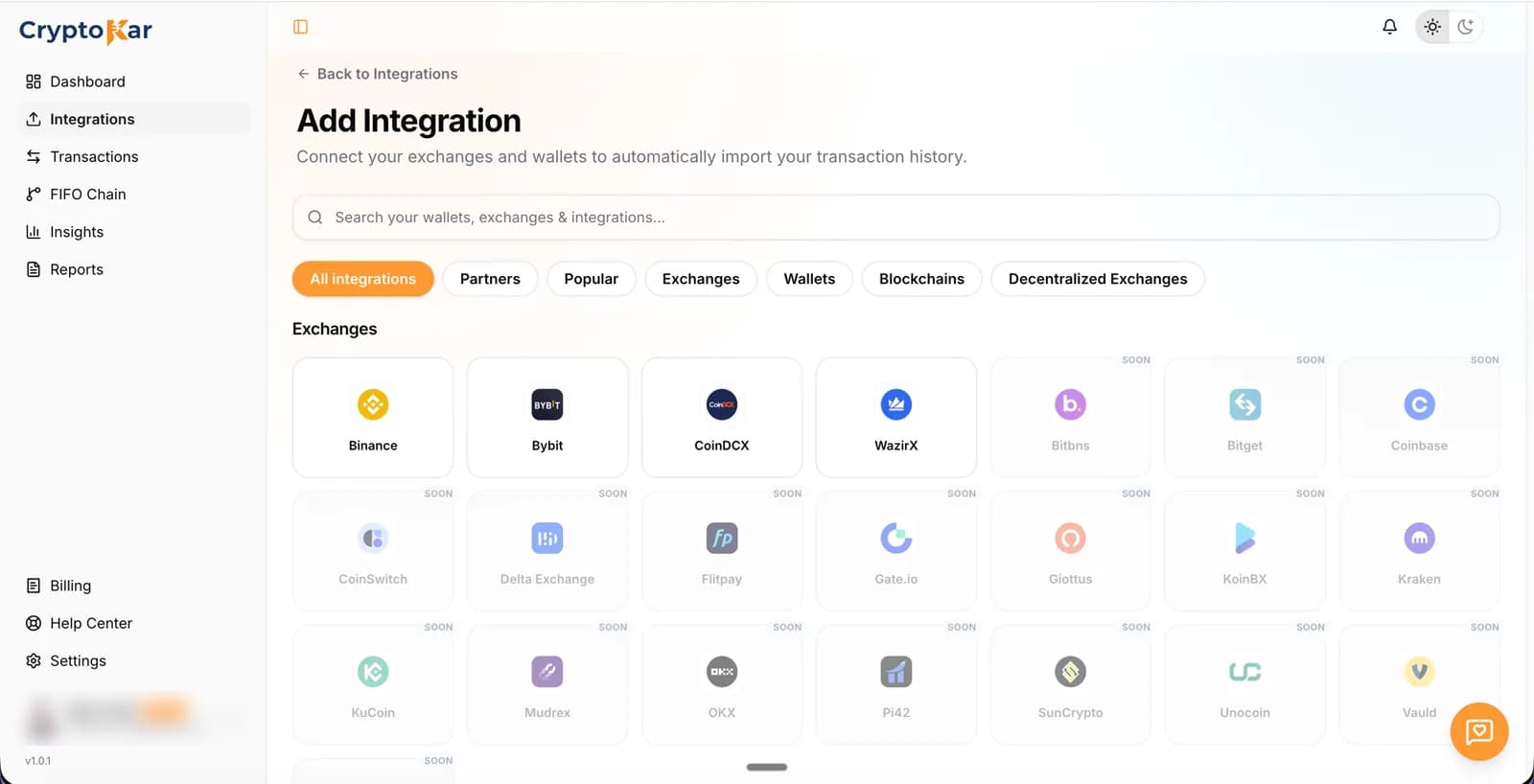
- Click Integrations in the sidebar, then search for your exchange.
- Download the trade report from the exchange first. The guide for each one says which report to pick and how far back it goes.
- Drag the files in or browse for them. CSV and XLSX both work, and every year you traded can go in at once.
- Click Parse & Import. The file is read in your browser, so the raw export never leaves your machine.
- Repeat for every exchange you traded on.
Step 3: Let CryptoKar process the data
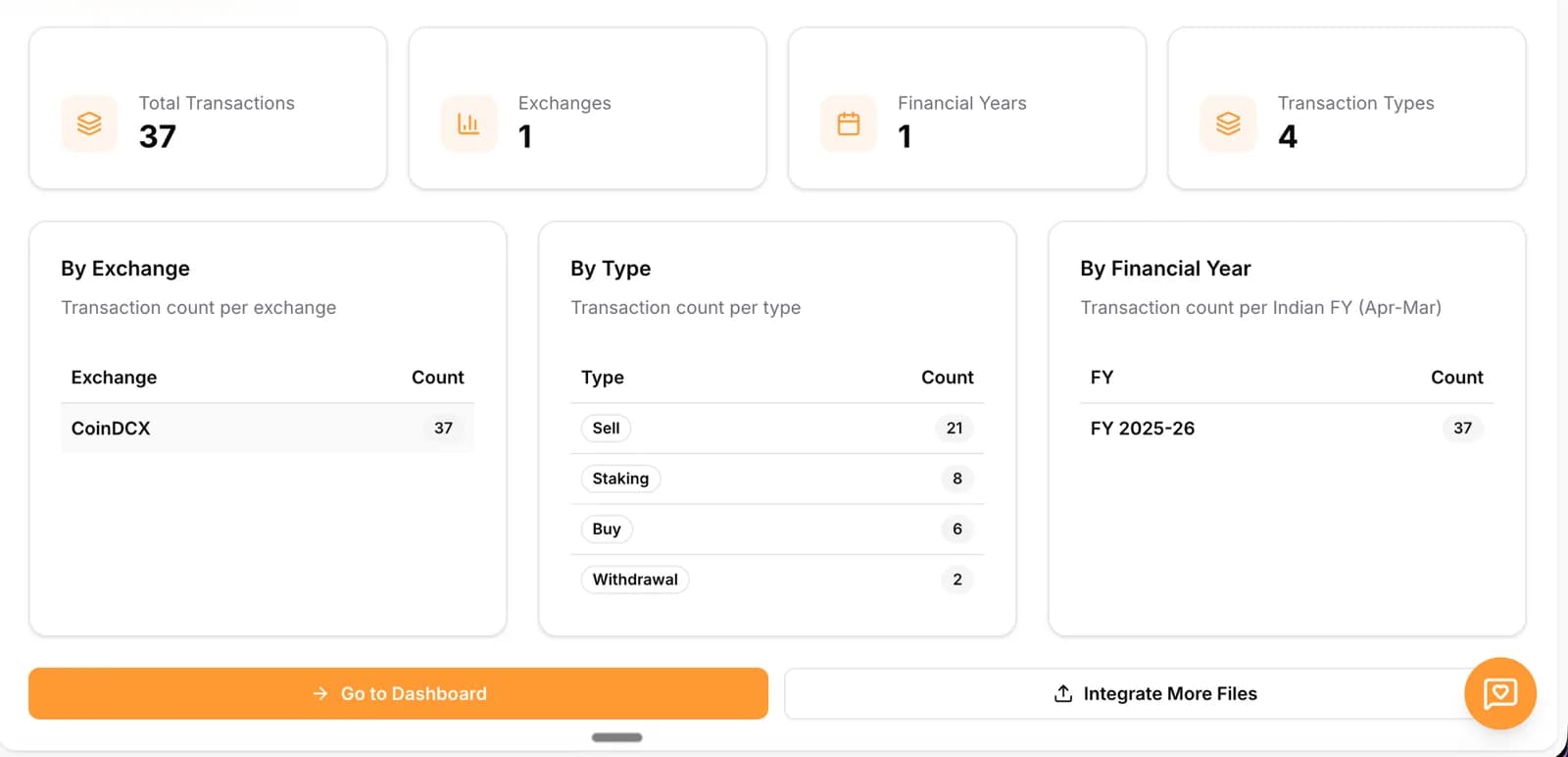
- Every row is classified: buy, sell, staking, withdrawal, airdrop, fee.
- Disposals are matched against the oldest lot of that coin first, across all your exchanges together.
- Rupee values are filled in from daily price history where the export leaves them blank.
- TDS deducted under Section 194S is read out of the file and totalled per exchange.
- How long it runs depends on how many transactions came in.
Step 4: Review your transactions
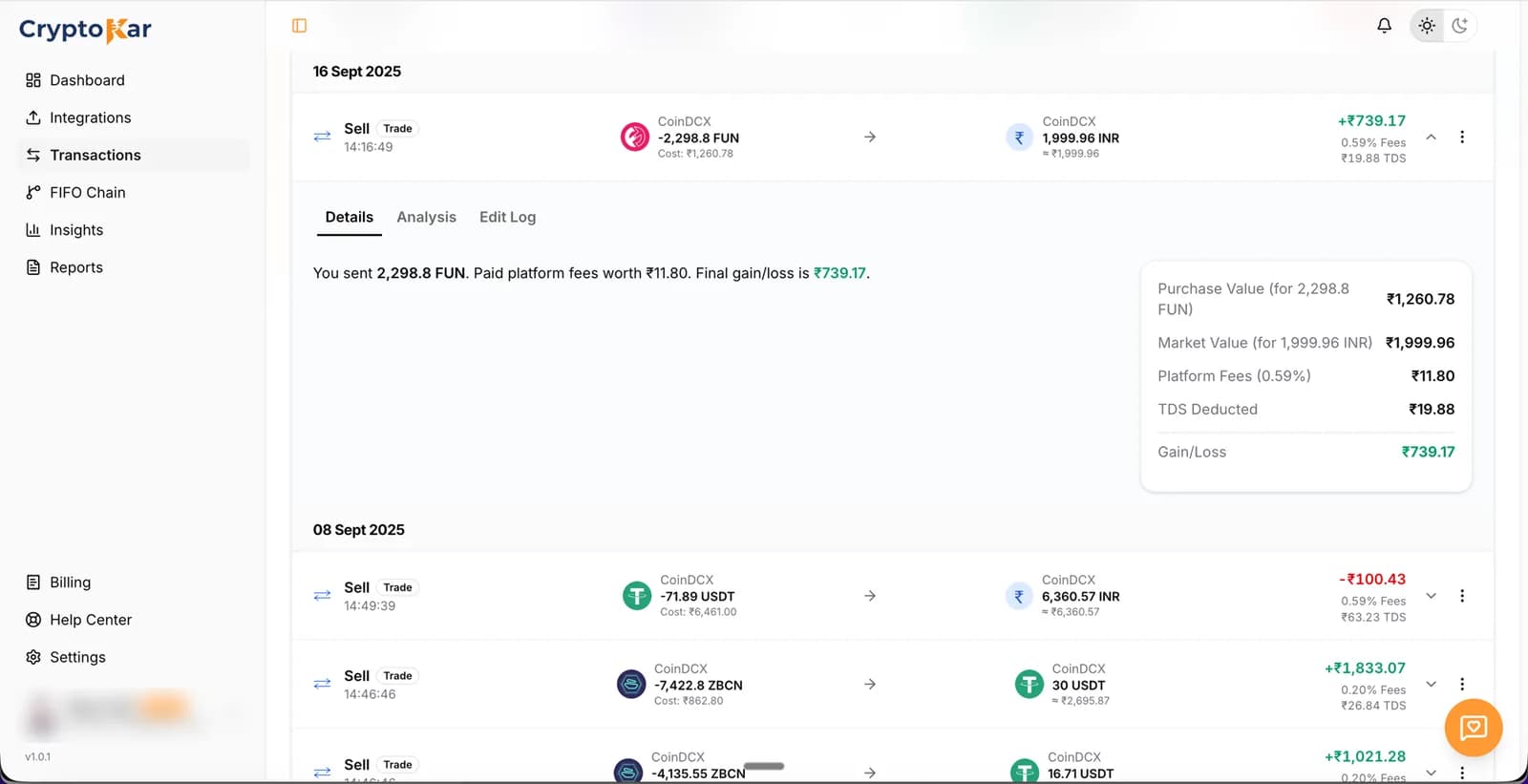
- Open a row to see the purchase value, market value, platform fees, TDS and the resulting gain or loss.
- Look for sales with no matching buy. Those are taxed on the full sale value until the purchase is imported.
- Look for transactions with no price. Those are flagged rather than guessed at.
- Check the FIFO Chain view when a gain looks wrong, to see which lots a sale consumed.
- Fix the gaps here. Everything downstream is built from this data.
Step 5: Generate and download the report
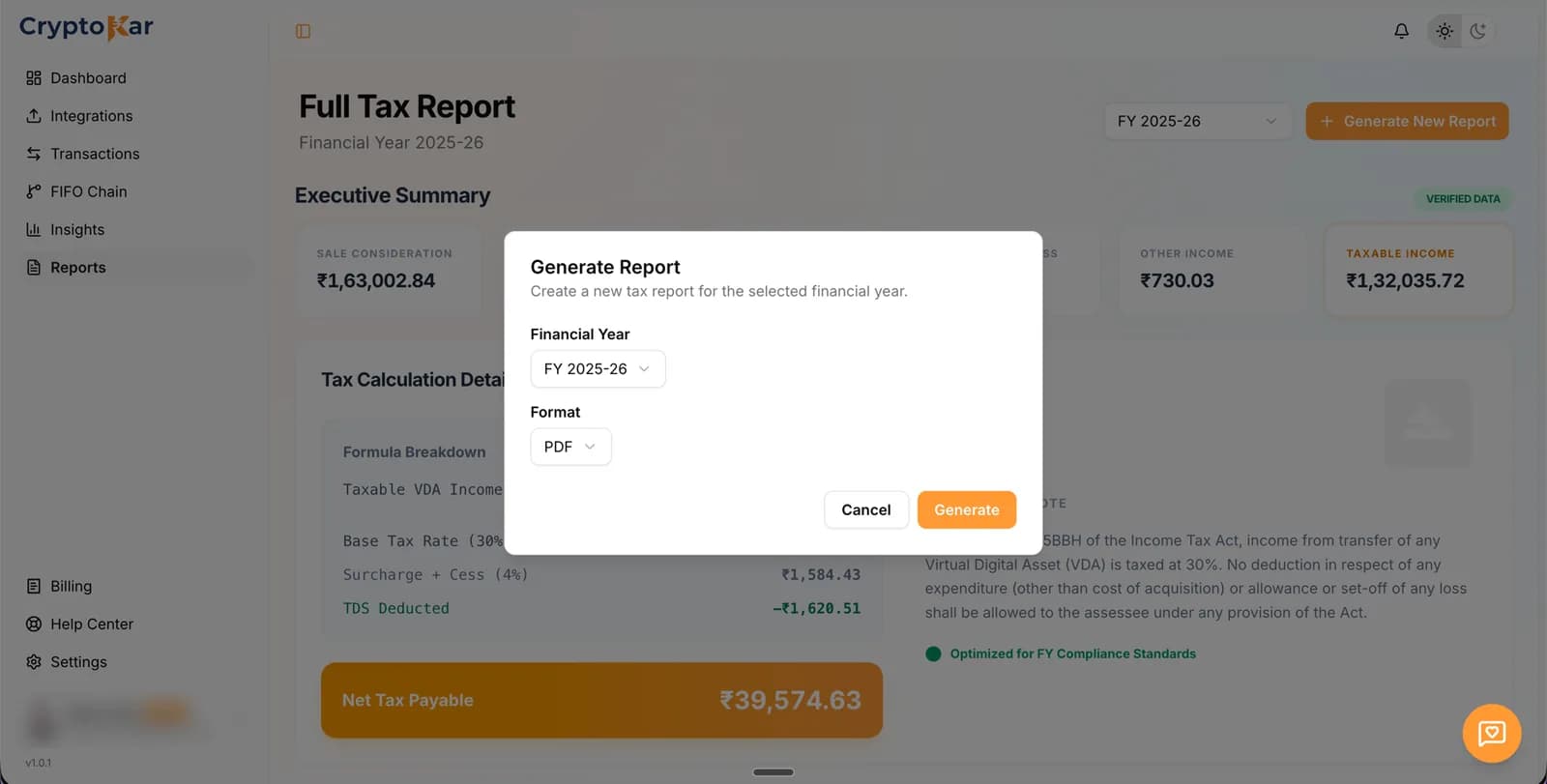
- Open Reports and pick the financial year in the selector at the top.
- Read the executive summary first. Sale consideration, gains, other income and net tax payable are all on that screen.
- Click Generate New Report, confirm the year, and choose PDF or Excel.
- The file downloads as soon as it is built, and stays in the reports list for later.
- Generate it again after any correction. The old file stays where it is.
What is inside the report
Sections appear when your data has something to put in them. A year with no derivatives trades carries no derivatives section.
Capital gains summary
Proceeds, cost of acquisition and net gain for the year, with the tax at 30% under Section 115BBH and 4% health and education cess on that tax.
Schedule VDA report
One row per disposal in the shape Schedule VDA asks for: date of acquisition, date of transfer, cost of acquisition and consideration received.
Capital gains detail
The FIFO working behind the summary. Each disposal is shown against the lots it consumed, so you can trace any figure back to the trades it came from.
Asset wise profit and loss
Gain or loss per coin across every exchange you imported, so one asset's result is not buried inside the year total.
TDS summary
TDS deducted under Section 194S, broken down by exchange, so you can reconcile it against Form 26AS before you claim the credit.
Derivatives, income and expenses
Futures and other derivative results, airdrops, staking and fees are listed separately from spot disposals rather than folded into the capital gains figure.
Data sources
Which files produced the report, and how many transactions came out of each. Orphan transactions get their own section when there are any.
Your own trades, in a report you can file from
Upload your exchange files. FIFO runs across all of them together and the Schedule VDA rows come out the other side.
- CoinDCX
- WazirX
- Binance
- Bybit


Before you start
Your full trade history
Not just the year you are filing for. A coin sold this year was bought at some point, and that buy is the cost of acquisition.
A CryptoKar account
Free to create. Import and tax calculation come with it. Downloading the report needs a paid plan, priced by how many transactions you have.
Exchanges you can import from today
- CoinDCX Import your CoinDCX trade report to calculate your crypto gains and tax.
- WazirX Import your WazirX trading report to calculate your crypto gains and tax.
- Binance Import your Binance transaction history and use it to calculate your crypto gains and tax.
- Bybit Import your Bybit transaction history and use it to calculate your crypto gains and tax.
How the numbers are worked out
- Cost basis is matched first in, first out. The oldest lot of a coin is the one a sale consumes.
- Gains are taxed at 30% under Section 115BBH, with 4% health and education cess charged on the tax rather than on the gain. Cost of acquisition is the only deduction.
- Losses are not set off against other income and do not carry forward, so a losing coin does not reduce the tax on a winning one.
- TDS deducted under Section 194S is pulled out of the exchange file and totalled per exchange for you to reconcile against Form 26AS.
- Every figure is computed at 20 digits of precision and rounded once, at the point the report prints it.
- The report is only as complete as what you imported. Gaps are flagged on the Transactions page, which is why step four is worth the time.
PDF and Excel
A laid-out document with a contents page, the summaries first and the detail behind them. This is the copy to read and to keep with your filing records.
Excel
The same figures split across sheets: tax summary, TDS breakdown, asset P&L, capital gains detail, transactions, Schedule VDA and data sources. Send this one to a chartered accountant.
Frequently Asked Questions
Questions people ask before they generate a report for the first time.
Troubleshooting
- The Generate Report button is disabled
- This happens when the year has no transactions in it, or when your transaction count is above what your plan covers. Check the financial year in the selector first, then the plan limit shown on the Reports page.
- A gain looks too high
- Usually a disposal with no purchase behind it. When the buy is missing, the cost of acquisition is nil and the whole sale value is treated as gain. Import the year the coin was bought in, then generate again.
- TDS is missing from the report
- TDS is read out of the exchange file. If the export you uploaded does not carry the deduction, there is nothing to read. Download the report variant that includes TDS from your exchange and import it.
- A coin shows no price
- Some files leave the rupee value out for thin or delisted pairs. Those transactions are flagged on the Transactions page, and fixing them there feeds straight into the next report.
- The download did not start
- The report is built and saved even when the download fails. Open the Reports page and download it from the list rather than generating a second copy.
Still stuck? Tell us what happened and we will look at your file.
CryptoKar calculates your tax from the transaction data you import. Review your report before you file. If you have questions about your tax situation, speak with a qualified tax professional.
Last updated 21 August 2026
Calculate Your Crypto Tax
Import your exchange data and get started. Supports CoinDCX, WazirX, Binance and Bybit.