Transaction guide
Fix Transaction Issues
A warning marks a transaction CryptoKar could not compute in full: a sale with no purchase behind it, a coin that arrived from outside your imported accounts, or a row the exchange left without a rupee value. Each one pushes your taxable gain up until you fix it.
What a warning means
CryptoKar computes your tax from the files you import. When a file leaves out something the calculation needs, the row is flagged rather than filled in with a guess. The transaction still counts towards your totals, and the amber strip under it says exactly what is missing.
Missing purchase history
A coin was sold, swapped or transferred out, but nothing in your account says where it came from. FIFO has no lot to match the disposal against.
Cost estimated from a deposit
A coin arrived from a wallet or an exchange you have not imported. CryptoKar prices it at the market rate on the day it landed so the gain is not overstated, and tells you the figure is an estimate.
Price not found
The export left the rupee value blank and no daily price exists for that coin on that date. Thin pairs, delisted tokens and new listings are the usual causes.
Whether warnings change your tax
They do, and the movement is nearly always upward. Under Section 115BBH the only deduction allowed is the cost of acquisition. When the purchase is missing, that cost is nil and the whole sale value is taxed as gain.
What the gap costs you
Sell a coin for ₹5,00,000 that you bought for ₹3,00,000. With the purchase imported, the gain is ₹2,00,000 and the tax is ₹60,000 plus ₹2,400 cess. With the purchase missing, the gain reads ₹5,00,000 and the tax reads ₹1,50,000 plus ₹6,000 cess. One missing file, ₹93,600 of difference.
How to fix a flagged transaction
Four steps, all inside the Transactions page. Each issue type fixes a different part of your data, so start with the one carrying the most weight.
Step 1: Select the issue
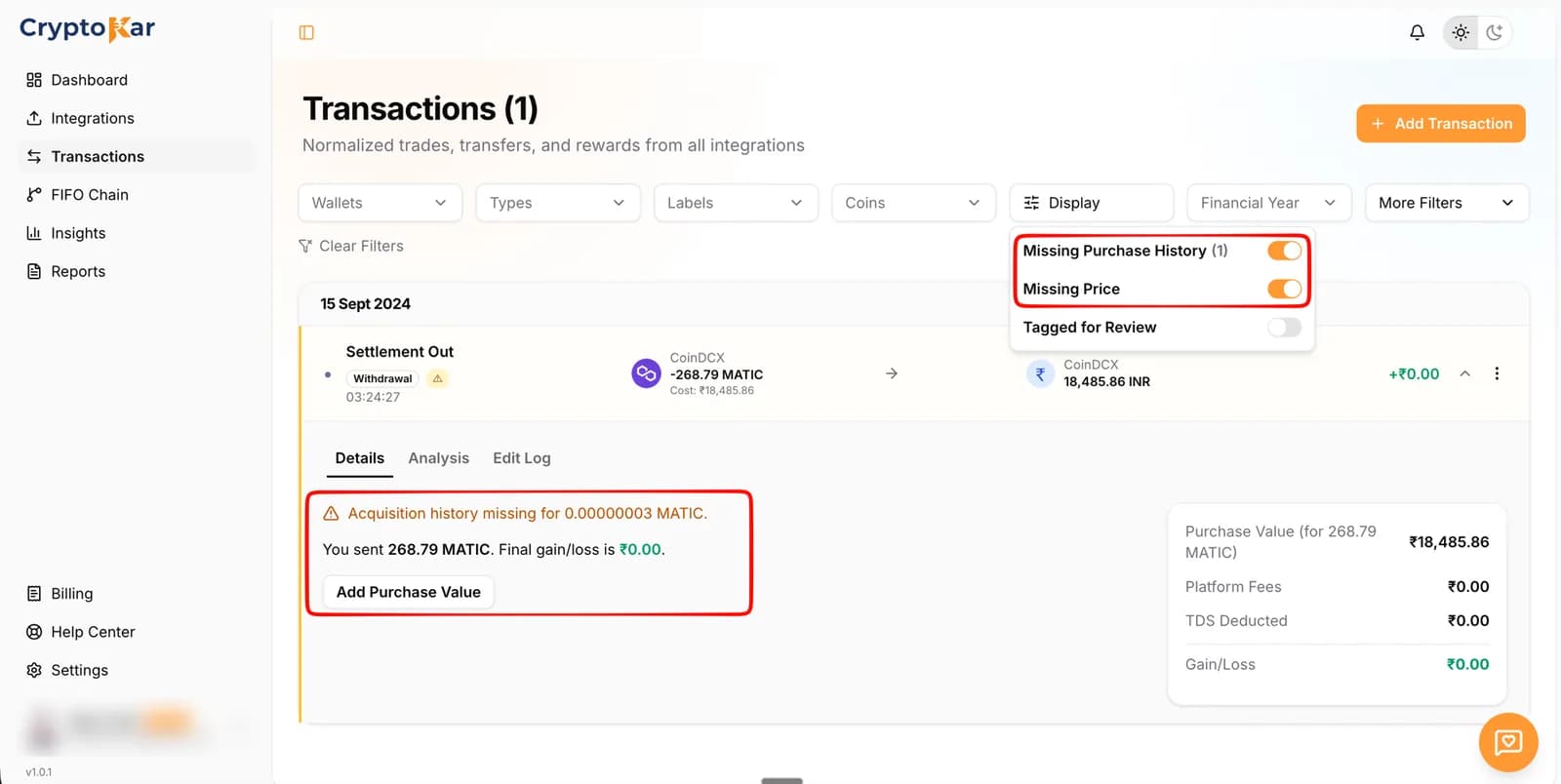
- Open Transactions and click Display above the list.
- Turn on Missing Purchase History to see only disposals with no cost basis. The number beside it is how many you have.
- Turn on Missing Price to see only rows with no rupee value.
- Tagged for Review holds the rows you marked yourself.
- Start with missing purchase history. It moves your tax the most.
Step 2: Review the transaction
- The list narrows to the flagged rows. Expand one to see why it is flagged.
- The amber line names the exact shortfall, down to the quantity: Acquisition history missing for 0.00000003 MATIC.
- The summary on the right shows purchase value, platform fees, TDS and gain, so you can see what the gap is doing to the number.
- Narrow further by exchange, coin, type or financial year while a filter is on.
Step 3: Add the missing information
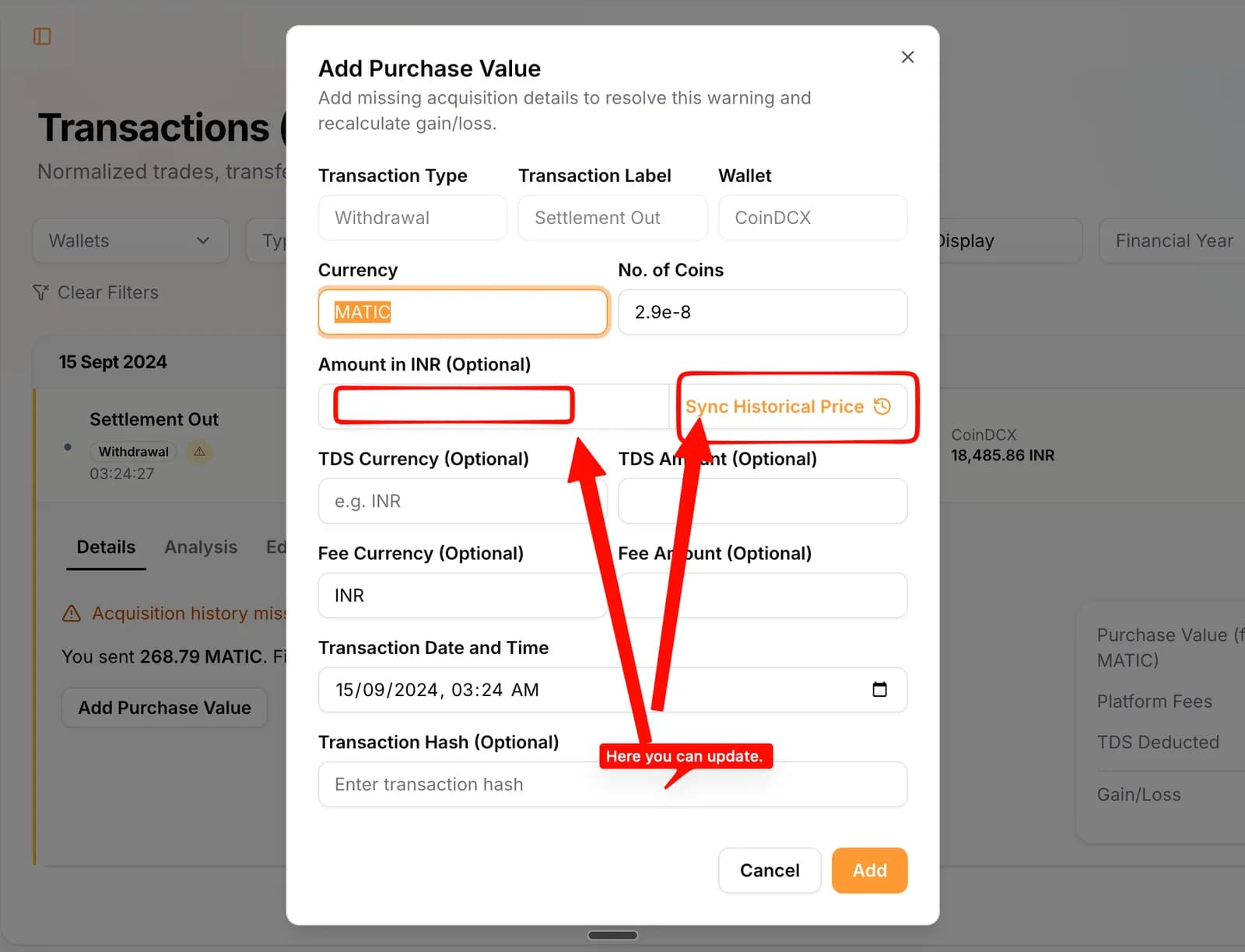
- Click Add Purchase Value on the flagged row.
- Currency and number of coins come pre-filled from the transaction. Correct them if the quantity is not the one you bought.
- Enter what you paid in Amount in INR, or click Sync Historical Price to pull the rate for that date.
- Fill in TDS currency and amount, and fee currency and amount, where they apply.
- Set the transaction date and time to when you actually bought the coin. That date decides where the lot sits in the FIFO queue.
- Transaction hash and wallet addresses are optional, for your own records.
- Click Add. The acquisition is written into your history.
Step 4: Recalculate your report
- The warning clears and the row recalculates against the lot you just added.
- Capital gains for the year move with it, and the Schedule VDA rows follow.
- Check FIFO Chain if the new gain still looks wrong, to see which lots the sale consumed.
- Generate a fresh report once the counts sit where you want them.
Clean data, then the report
Import every exchange you traded on, clear the flagged rows, and the Schedule VDA figures come out of your own history rather than a gap in it.
- CoinDCX
- WazirX
- Binance
- Bybit


Warning
Missing purchase history
What the row says
Acquisition history missing for 0.40000000 BTC.
What it means
A coin was sold, swapped or transferred out, but nothing in your account says where it came from. FIFO has no lot to match the disposal against.
Why it matters
Cost of acquisition is nil for the unmatched quantity, so the whole sale value is treated as gain and taxed at 30%.
How to fix it
- Import the year the coin was bought in. Most of these clear themselves once the earlier file is in.
- Open the flagged row and choose Add Purchase Value. Fill in the currency, the number of coins and what you paid in rupees.
- Use Sync Historical Price in that dialog to pull the rupee value for the day, when you know the date but not the amount.
- Add the TDS currency and amount in the same dialog if TDS was deducted on that purchase.
Warning
Cost estimated from a deposit
What the row says
No purchase record for 1.00000000 ETH received from outside this account. Cost estimated at its market price on the day it arrived.
What it means
A coin arrived from a wallet or an exchange you have not imported. CryptoKar prices it at the market rate on the day it landed so the gain is not overstated, and tells you the figure is an estimate.
Why it matters
The gain is close but not yours. Whatever you actually paid is the number the return needs.
How to fix it
- Import the account the coin came from, if it is one of the supported exchanges.
- Open the row and add the real purchase value. It replaces the estimate rather than sitting alongside it.
- Leave it estimated only when the original purchase is genuinely unavailable, and keep a note of why.
Warning
Price not found
What the row says
Price not found for ZBCN. Add price to set its market value.
What it means
The export left the rupee value blank and no daily price exists for that coin on that date. Thin pairs, delisted tokens and new listings are the usual causes.
Why it matters
The transaction is valued at nil until you fill it in, which understates income on a reward or an airdrop and distorts the proceeds on a sale.
How to fix it
- Open the row and click Add Price, then enter the per unit rate in rupees.
- Take the rate from the exchange you traded on for the date in question, not today's rate.
- For a token with no rupee market, price it through its USDT rate on that day.
Clear warnings before you generate
Work the list in this order. Each pass shrinks the next one.
- Filter to Missing Purchase History and work the list until the count is zero, or until every remaining row is one you have decided to leave.
- Filter to Missing Price and fill in the rates.
- Replace estimated deposit costs with what you actually paid, wherever you still have the record.
- Confirm every exchange you traded on is imported, including the ones you stopped using.
- Check the financial year filter covers the year you are filing for, then read the totals on Reports.
- Generate the report once the counts sit where you want them.
Frequently Asked Questions
What people ask when a row turns amber the first time.
Edge cases
- A warning cleared but the gain still looks wrong
- Open FIFO Chain for that coin. The sale may be matched against a lot you did not expect, which happens when two buys sit on the same day. The chain shows the order the lots were consumed.
- The same warning keeps coming back after each import
- The file being re-imported carries the same gap. Fix the source instead: download the export that includes the earlier year, or add the purchase value manually so it survives the next import.
- Hundreds of rows are flagged at once
- That is almost always one missing file rather than hundreds of separate problems. Import the earliest year you traded first, then look at the count again.
- Warnings are showing on transactions from years you are not filing
- Leave them if the disposal sits outside the year you are filing. Fix them if the buy sits outside the year, because that buy is the cost basis for a sale inside it.
- A transfer between your own accounts looks like a sale
- Both sides need to be imported for the transfer to match up. With only one side in the account, the outgoing leg reads as a disposal and the incoming leg as a deposit with no purchase history.
Something here not matching what you see? Send us the row and we will look at it.
CryptoKar calculates your tax from the transaction data you import. Review your report before you file. If you have questions about your tax situation, speak with a qualified tax professional.
Last updated 21 August 2026
Calculate Your Crypto Tax
Import your exchange data and get started. Supports CoinDCX, WazirX, Binance and Bybit.