Transaction guide
Add Transactions Manually
Some trades never make it into an export. An unsupported exchange, a peer to peer purchase, a coin bought from a friend. Typing those in keeps your cost basis whole, and a manual row counts exactly like an imported one.
When to add one by hand
- You traded on an exchange CryptoKar does not import yet, and the coins later moved somewhere it does.
- A peer to peer purchase happened off the exchange, so the rupee side never appeared in any export.
- You bought from a friend, or were paid in crypto, and there is no exchange record at all.
- The export is missing a year that the exchange no longer provides.
- A coin arrived from a wallet, and the purchase behind it needs to exist for the cost basis to carry.
What you need first
The date and time
As close to the real moment as you can get. It sets where the lot sits in the FIFO queue, so a rough date can change which purchase a later sale consumes.
The coin and the quantity
The ticker as the exchange writes it, and the amount to the decimal places you actually received.
The rupee value
What the transaction was worth in INR at that moment. For a purchase, what you paid. For a reward, what it was worth when it landed.
Fees and TDS
Only where they applied. TDS matters because it becomes a credit you claim under Section 194S.
Adding a transaction
Step 1: Open Add Transaction
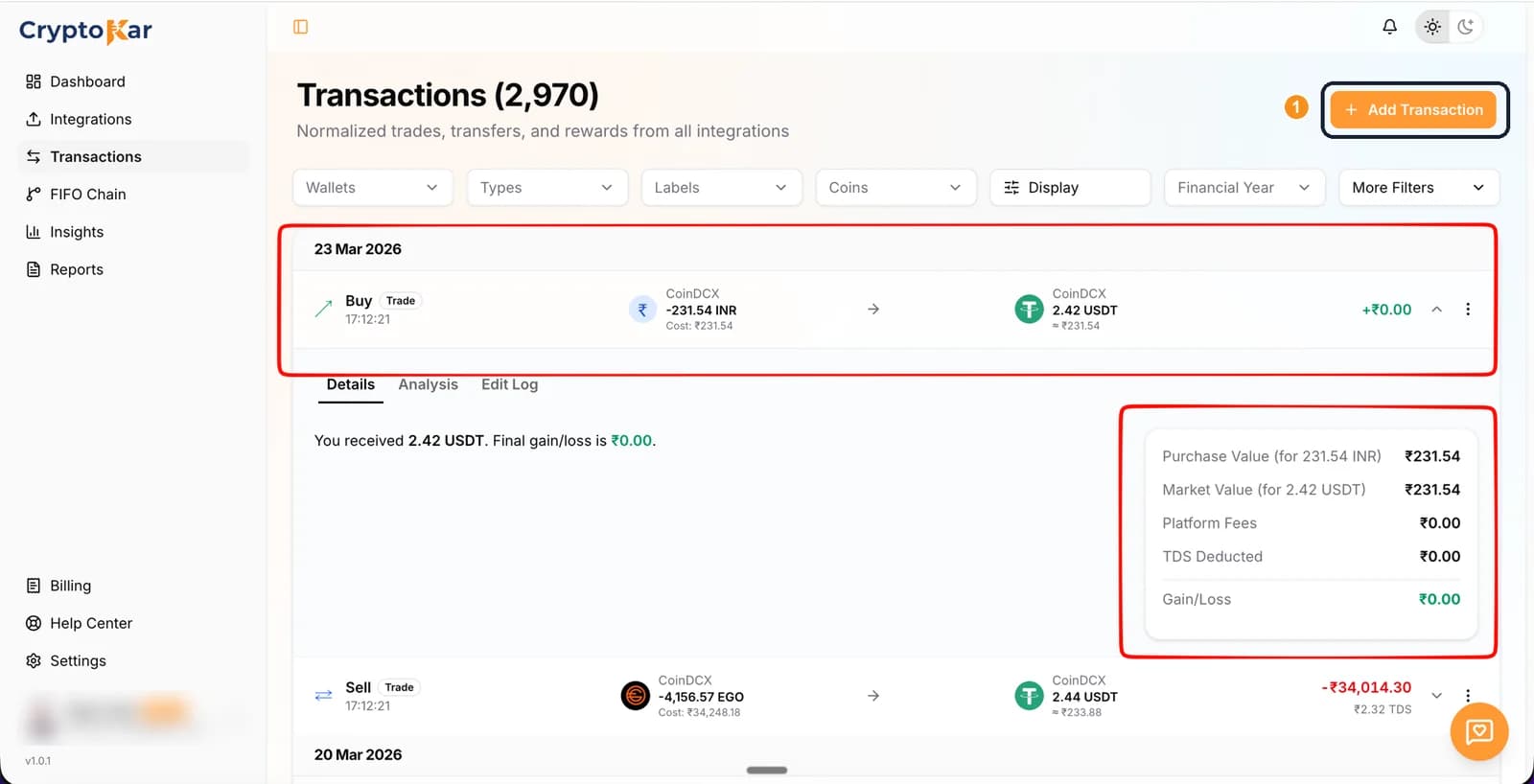
- Go to the Transactions page and click Add Transaction at the top right.
- The dialog is the same one used for editing, with the fields empty.
Step 2: Say what happened
- Pick the Transaction Type: buy, sell, deposit, withdrawal, trade, swap, reward, airdrop, staking, fork or derivatives.
- The Transaction Label fills itself in from the type. It is a preview, not an input.
Step 3: Enter the asset and the amounts
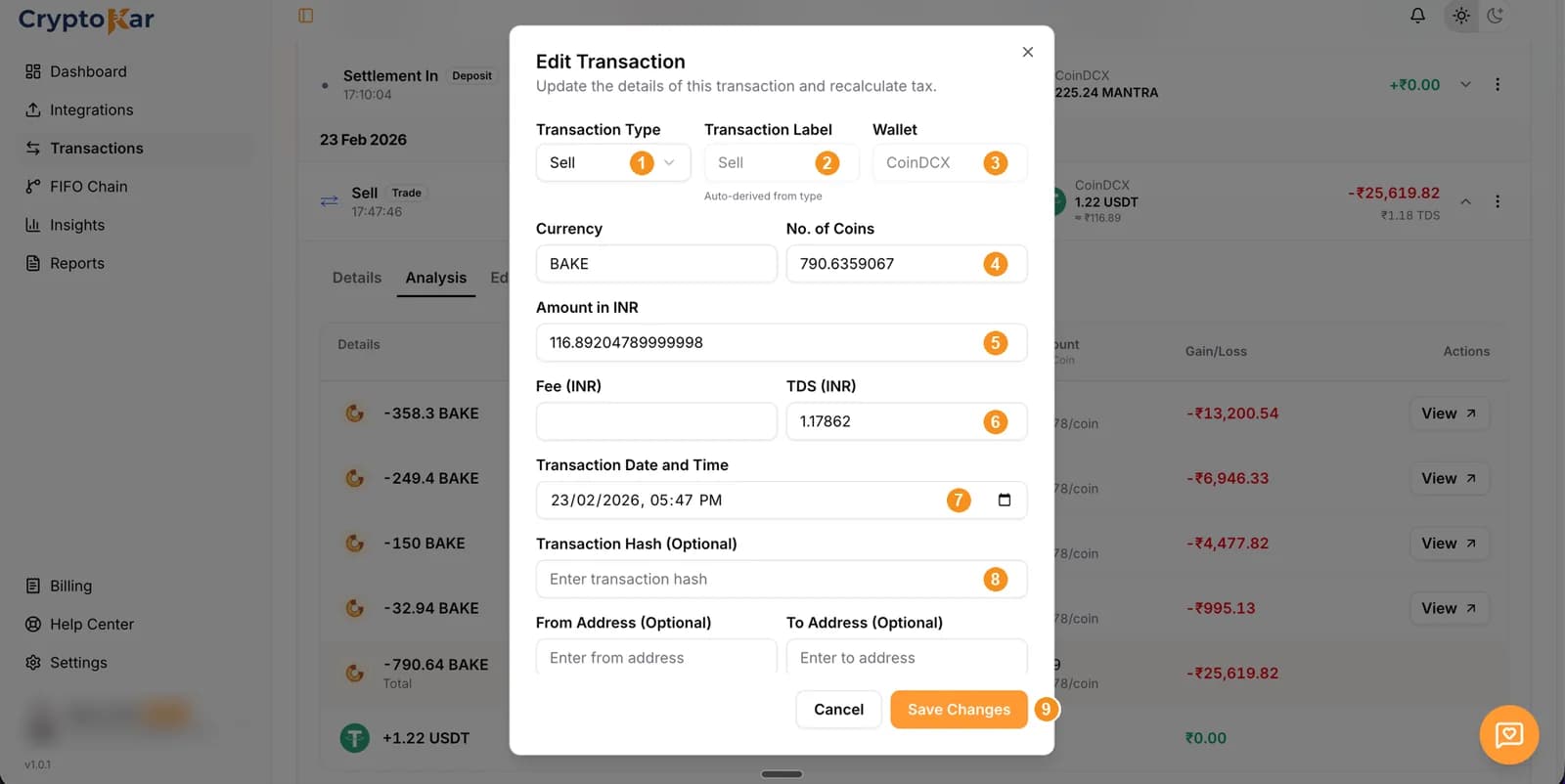
- Currency takes the ticker, for example BTC or USDT.
- No. of Coins takes the quantity, decimals included.
- Amount in INR takes the rupee value at the time of the transaction.
- Fill in TDS and fee fields where they applied, each with its currency and amount.
Step 4: Set the date and save
- Set the transaction date and time to when it happened, not when you are entering it.
- Transaction hash and wallet addresses are optional and affect no calculation.
- Click Add Transaction. It joins your history and the FIFO pool immediately.
What each field affects
| Field | What it drives |
|---|---|
| Type | Decides whether the row is a disposal, an acquisition or income. This is the field that decides how the amount is taxed. |
| Date and time | Places the lot in the FIFO queue and decides which financial year the event falls in. |
| Quantity | How much of the coin the lot holds, or how much a disposal consumes. |
| Amount in INR | The cost of acquisition on a buy, the proceeds on a sale, and the income figure on an airdrop, reward or staking payout. |
| TDS | Feeds the TDS summary in your report, where you reconcile it against Form 26AS before claiming the credit. |
| Fee | Recorded against the row. It does not reduce a VDA gain, because cost of acquisition is the only deduction Section 115BBH allows. |
By hand or by import
Import the file
Whenever the exchange gives you an export. Hundreds of rows arrive correctly, with fees and TDS already attached, and nothing is mistyped.
Type it in
When no export exists, or when a handful of events are missing from one that does. Practical for a few rows, painful for a few hundred.
CryptoKar imports CoinDCX, WazirX, Binance and Bybit today. Each has its own import guide covering which export to download.
Frequently Asked Questions
What people ask before typing a trade in themselves.
Edge cases
- You know the month but not the day
- Pick a date within the month and keep a note of the uncertainty. A date inside the right financial year matters more than the exact day, unless you sold the coin in between.
- The purchase was in USDT, not rupees
- Convert at the rate on that date and enter the rupee figure. The report is a rupee document.
- You are entering a transfer, not a trade
- Add the leg that is missing, matching the quantity on the leg you already have, so the coins carry their cost basis instead of appearing from nowhere.
- You added the same transaction twice
- Delete one of them from the row menu. Duplicates inflate both your holdings and your gains.
Sitting on an exchange we do not import yet? Tell us which one.
CryptoKar calculates your tax from the transaction data you import. Review your report before you file. If you have questions about your tax situation, speak with a qualified tax professional.
Last updated 21 August 2026
Calculate Your Crypto Tax
Import your exchange data and get started. Supports CoinDCX, WazirX, Binance and Bybit.